How to Fix the Purchase Summary Widget Not Showing in WooCommerce with Elementor
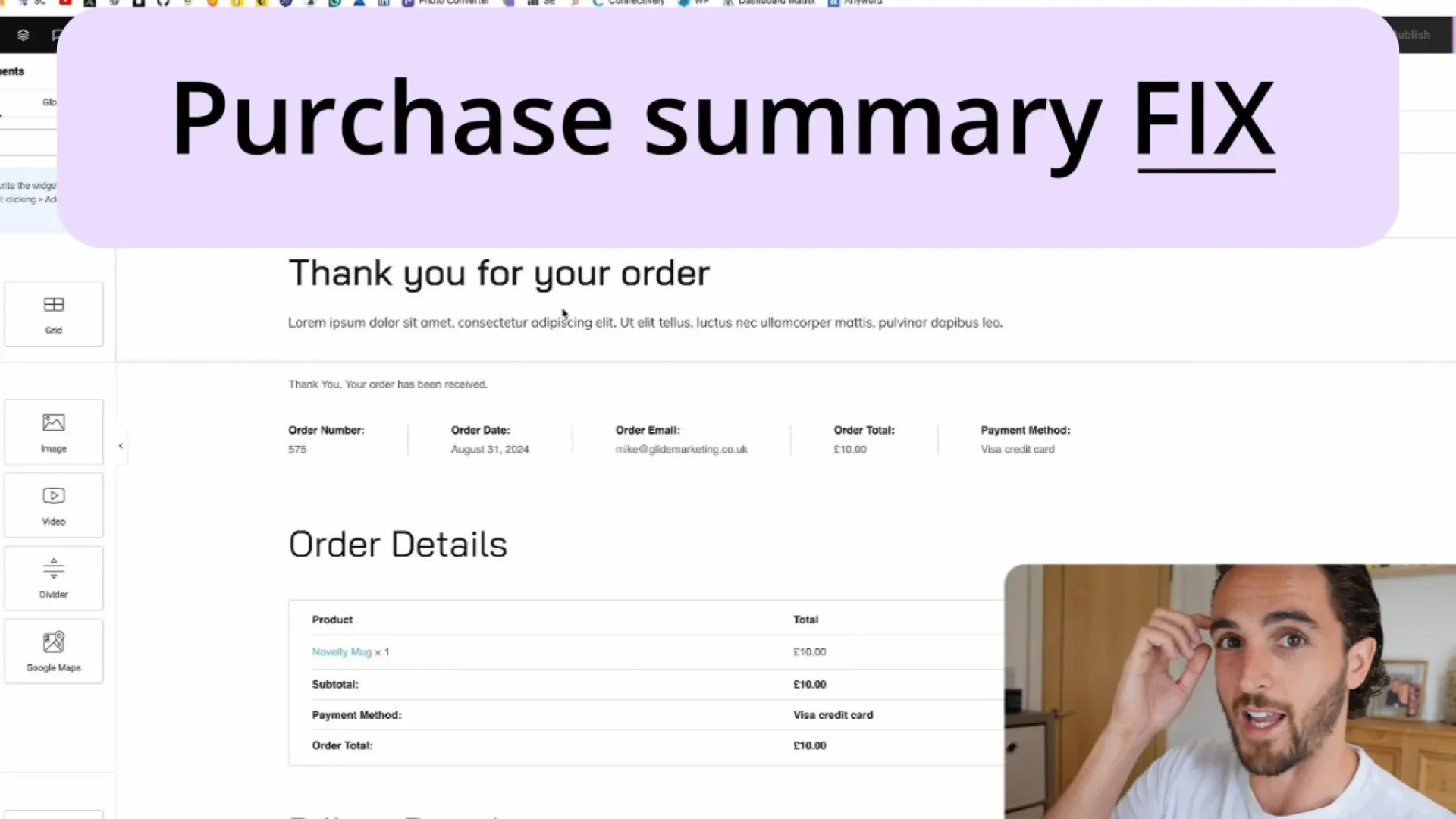
Are you frustrated because the purchase summary widget is not displaying on your WooCommerce site, even after setting up your order confirmation page with Elementor? This issue wound me up, too! But don’t worry. Many WooCommerce users encounter this problem, and the solution, while not immediately a
Are you frustrated because the purchase summary widget is not displaying on your WooCommerce site, even after setting up your order confirmation page with Elementor? This issue wound me up, too! But don’t worry. Many WooCommerce users encounter this problem, and the solution, while not immediately apparent, is quite simple. This guide will walk you through the steps to fix this issue so you and your customers can see their purchase summary after checkout.
Why the Purchase Summary Isn’t Showing
This problem typically arises when the order confirmation page isn’t correctly linked to the WooCommerce settings. Even though you’ve designed the page in Elementor, WooCommerce needs to be correctly configured to display the content you’ve set up.
The most likely cause of this issue is that WooCommerce isn’t pointing to the correct page or that the settings within Elementor haven’t been adjusted to match the WooCommerce requirements within site settings.
Step-by-Step Fix
Step 1: Verify Your Order Confirmation Page in Elementor
First, make sure that your order confirmation page is set up correctly in Elementor:
1. Open Elementor: Navigate to your desired order confirmation page.
2. Check the Layout: Ensure all necessary elements, such as the purchase summary, are included in the design.
3. Save the Page: Double-check that the page is saved and updated with all changes.
Step 2: Check WooCommerce Settings
Next, ensure that WooCommerce is correctly pointing to the order confirmation page:
1. Go to WooCommerce Settings: Navigate to WooCommerce > Settings > Advanced.
2. Order Received Page: Look at the “Order received” option. This should be set to the slug of your order confirmation page. If the page isn’t correctly selected, WooCommerce won’t know where to direct the user after a purchase.
3. Save Changes: Make sure to save any changes you make to the settings.
Step 3: Assign the Correct Page in Elementor
Even if you’ve set the correct page in WooCommerce, you need to ensure Elementor is also correctly configured:
1. Open the Page in Elementor: Go to the Elementor editor for the order confirmation page.
2. Settings: In the Elementor editor, click the site settings button.
3. WooCommerce: Choose from the WooCommerce options that will bring up WooCommerce pages.
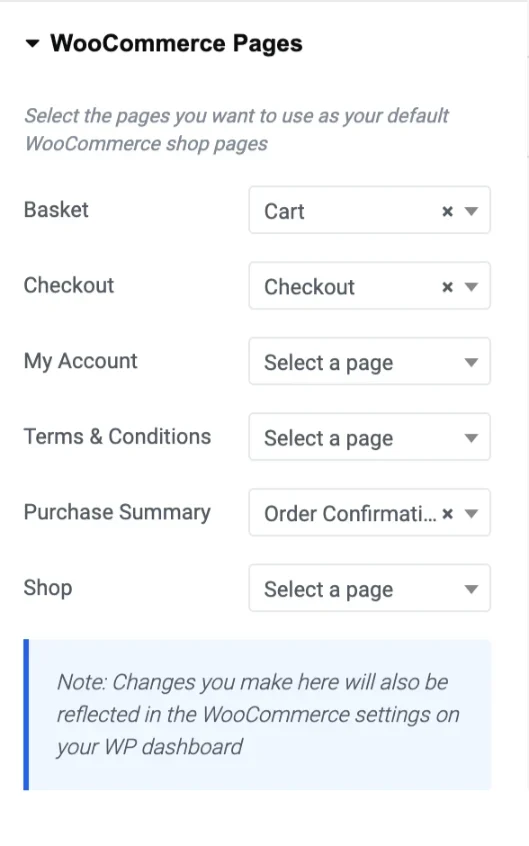
4. Order Confirmation: From here, choose from the dropdown list which page should show on the order confirmation screen.
5. Save and Update: After checking everything, save and update your page.
Testing the Fix
Once you’ve made these adjustments, it’s important to test the fix:
1. Place a Test Order: Go through the checkout process as a customer would.
2. Check the Confirmation Page: Ensure the purchase summary shows as expected on the order confirmation page.
Conclusion
If you follow these steps, your WooCommerce purchase summary should now be displaying correctly on your order confirmation page. This fix ensures that Elementor and WooCommerce are appropriately aligned in their settings. It’s a simple but crucial step that ensures your customers receive the information they need after purchasing.
Need more WooCommerce tips? Check out our blog posts on WordPress for more articles on optimising your e-commerce site, or explore our web design services to see how we can help you take your online store to the next level.
By following this guide, you should have resolved the issue with the purchase summary not showing on your WooCommerce site. This post is optimized to help others solve this problem, improving your site’s usability and ensuring your customers have a smooth shopping experience.