Fix for Jet Smart Filters Not Filtering on Elementor and WordPress Products
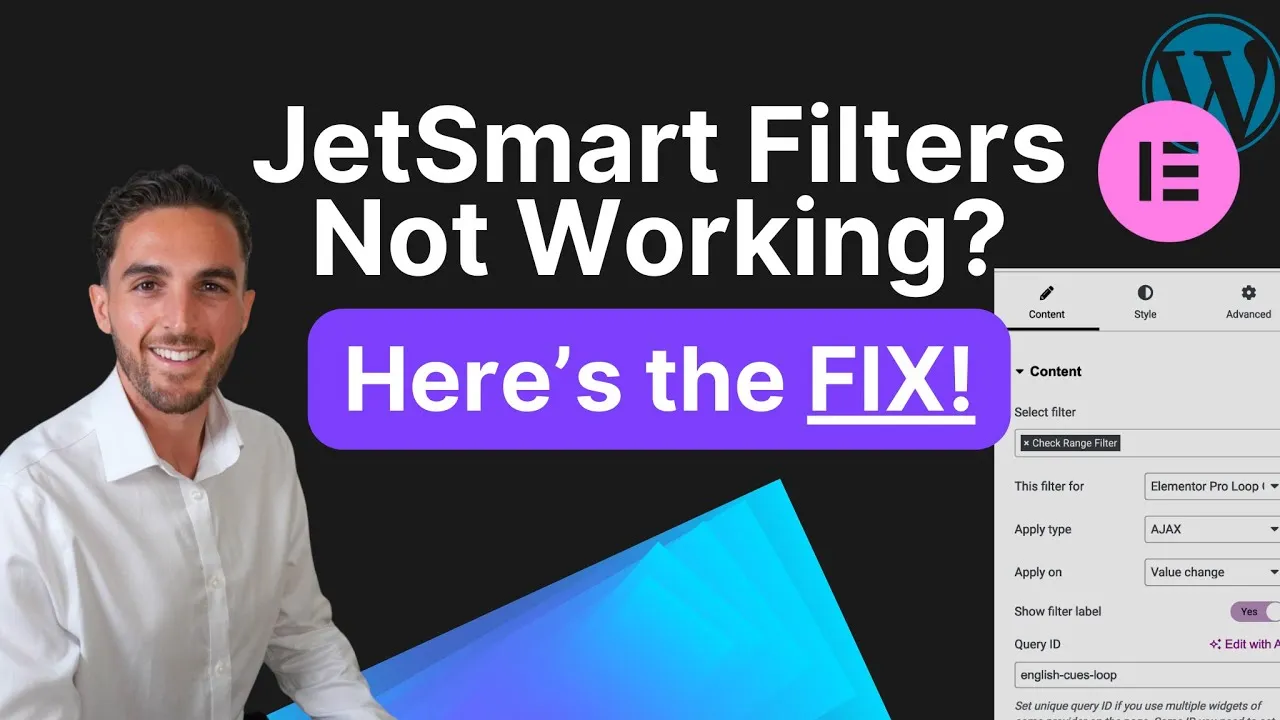
Troubleshooting JetSmart Filters in Elementor can take hours of frustration when you're filtering functionality suddenly stops working. This quick fix guide provides a systematic approach to resolve common issues with JetSmart Filters, ensuring your Elementor-built website maintains smooth filtering
Troubleshooting JetSmart Filters in Elementor can take hours of frustration when you’re filtering functionality suddenly stops working. This quick fix guide provides a systematic approach to resolve common issues with JetSmart Filters, ensuring your Elementor-built website maintains smooth filtering capabilities with minimal downtime.
Watch my tutorial video where I demonstrate the exact steps to fix your JetSmart Filters in Elementor:
Common JetSmartFilters Issues in Elementor
When working with Elementor and JetSmart Filters, you might encounter several frustrating issues that prevent your filters from functioning properly. These problems typically manifest as filters not displaying at all, filters showing but not applying when clicked, or inconsistent filtering results that don’t match your expected output.
The integration between these two powerful tools sometimes creates conflicts that can break your carefully designed filtering system, particularly after updates to either plugin or your WordPress core.
Step-by-Step Solution to Fix JetSmartFilters
Follow these detailed steps to resolve most JetSmartFilters issues when working with Elementor:
1. Check Plugin Compatibility
First, ensure both Elementor (Free or Pro) and JetSmartFilters are updated to their latest versions. Plugin conflicts often occur when using outdated versions that aren’t compatible with each other or your current WordPress version.
2. Clear Cache
Clear all caching mechanisms including:
- Browser cache
- WordPress cache
- Caching plugins
- Server-level caching if accessible
Persistent cache is a common culprit behind many JetSmartFilters issues as it can store outdated configurations.
3. Verify Query Settings
Double-check your query settings in both the JetSmart Filters configuration and in the Elementor widget you’re trying to filter. Ensure that the query ID matches exactly between your filter and the filtered element.
4. Check AJAX Settings
Verify that your AJAX settings are properly configured in the JetSmart Filters dashboard. Incorrect AJAX configuration is often responsible for filters that appear to work but don’t actually update the content.
5. Inspect for JavaScript Errors
Use your browser’s developer tools to check for any JavaScript errors that might be preventing the filters from working correctly. Sometimes other plugins or theme elements can create conflicts.
Pro Tips for Avoiding Future Plugin Conflicts
To maintain a smooth operation of your JetSmart Filters with Elementor in the future, consider these professional recommendations:
- Create a staging environment to test updates before applying them to your live site
- Keep a backup of working configurations before making changes
- Document your filter settings for easy reference during troubleshooting
- Use consistent naming conventions for query IDs to avoid confusion
When implementing complex filtering systems, it’s best practice to build them incrementally, testing each step along the way rather than configuring everything at once and then troubleshooting a potentially complex set of issues.
Tools Required for the Fix
To follow along with this tutorial, you’ll need access to:
- Elementor (either Free or Pro version)
- JetSmart Filters by Crocoblock
- Administrative access to your WordPress dashboard
Remember that different versions of these tools may have slightly different interfaces, but the core principles of troubleshooting remain the same regardless of the specific version you’re using.
If you’re still experiencing issues after following these steps, consider checking for conflicts with other installed plugins by temporarily deactivating them one by one to isolate the problem. For more Elementor and Crocoblock tutorials, you can visit my website at Glide Marketing where I regularly share additional tips and solutions.